
- Published on
Stream Crashes After ~30 Minutes on TikTok Live? The 3-Bucket Fix (2026)
- Authors

- Name
- Robin
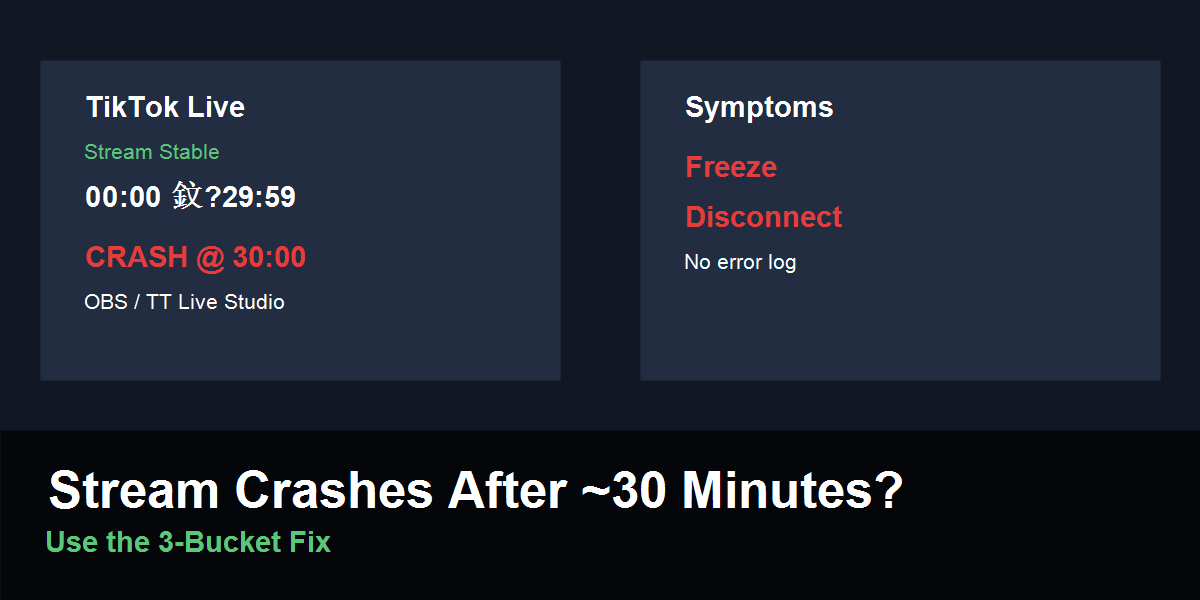
A consistent 30-minute crash is a signal, not random bad luck. It points to one of three fixable buckets.
The 30-Minute Wall (Problem)
If your stream dies at roughly the same time every session, that consistency is the clue. Random bugs don’t keep a schedule, but thermal protection, power limits, driver watchdogs, and network lease hiccups often do.
One r/TikTokLive creator put it plainly: “My live crashes at about 30 minutes every time. No error, just gone.” That’s the classic pattern.
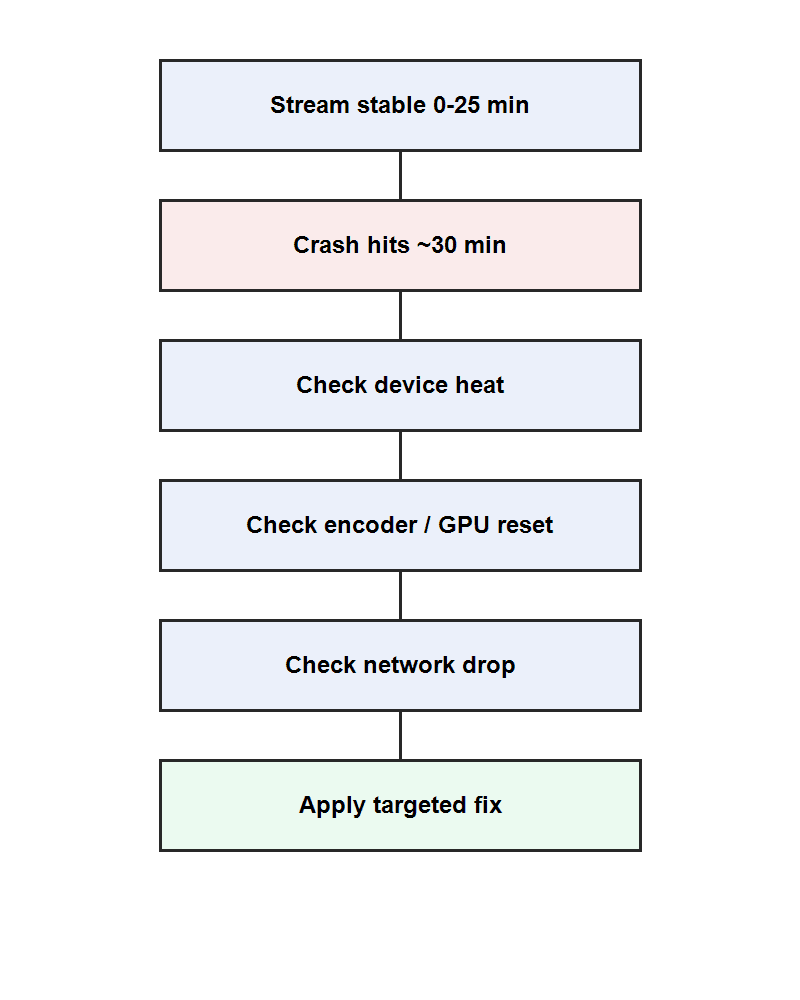
30-minute crash checklist flow: it isolates the root cause instead of chasing random settings.
Why 30 Minutes Is a Clue (Cause Buckets)
Bucket 1: Heat or Power Throttle
If your device is hot to the touch, fans are spiking, or the case feels warm near the GPU/CPU, your system may be throttling itself to survive. That protection often kicks in around a predictable time window.
Signs:
- The PC or laptop feels unusually hot
- Performance slowly degrades before the crash
- You recover only after a full restart or cool-down
Fixes:
- Lower output resolution or FPS for TikTok Live
- Cap in-game FPS to reduce heat
- Clean dust and open airflow paths
- Use a slower charger if streaming on mobile
Bucket 2: Encoder or Driver Reset
A 30-minute crash with no error log can be a GPU driver watchdog reset. OBS and TikTok Live Studio both rely on the GPU; a single reset kills the live session even if the app stays open.
Signs:
- OBS preview freezes while the game keeps running
- Event Viewer shows Display driver reset or TDR entries
- The stream ends without a visible crash dialog
Fixes:
- Update GPU drivers and roll back if the last update triggered the issue
- Switch encoder (NVENC ↔ x264) for a test session
- Reduce scene complexity (browser sources, animated overlays)
Bucket 3: Network or Ingest Drop
If your connection flips for a second, TikTok’s ingest can drop your session. Thirty minutes can line up with router lease renewals, ISP traffic shaping, or overloaded upload.
Signs:
- Live ends but the app looks fine
- Stream ends more often on Wi-Fi than Ethernet
- Upload speed dips or spikes in the same time window
Fixes:
- Use Ethernet for one test stream
- Reboot the router before going live
- Switch to a different network to test if the crash disappears
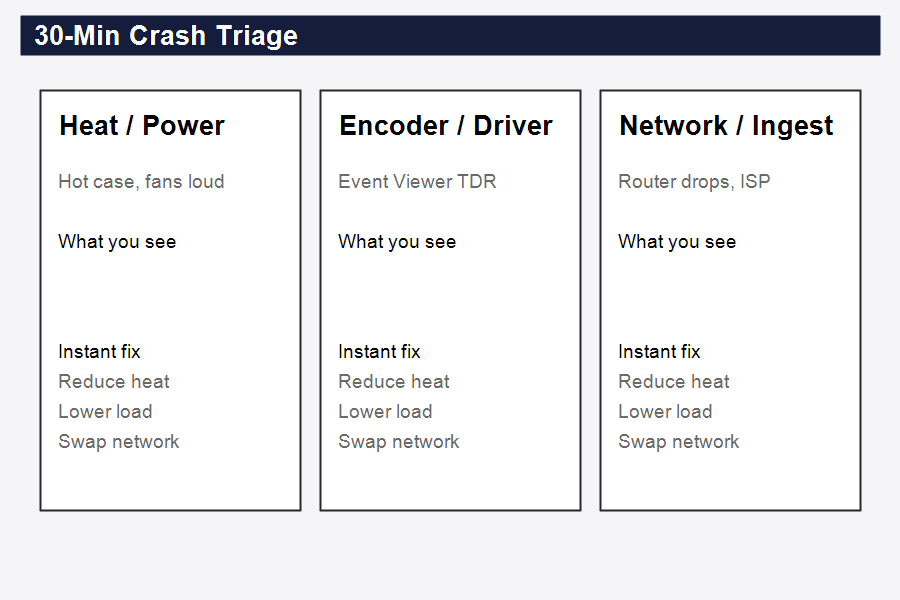
Crash triage map: each bucket has different visible symptoms, so you don’t waste time fixing the wrong layer.
The 3-Bucket Fix (Step-by-Step)
- Run a controlled test stream with a single scene and no overlays.
- Watch temperature or fan behavior between 20–35 minutes.
- Check Event Viewer for GPU driver reset messages right after the crash.
- Switch network (Ethernet or mobile hotspot) for one test stream.
- Change only one variable per test and log the result.
Actionable Checklist
- Cap FPS and lower output resolution for one test stream
- Remove browser sources and heavy overlays
- Update GPU drivers and test a rollback if needed
- Stream once on Ethernet or a different Wi-Fi network
- Keep a simple crash log with time, symptoms, and changes
FAQ
Q: Is this a TikTok shadowban or content issue?
A: No. A consistent 30-minute crash is a technical stability issue, not a content visibility penalty.
Q: It only crashes when I use TikTok Live Studio. Does that matter?
A: Yes. That points to GPU/encoder load or a Live Studio update conflict rather than TikTok’s backend alone.
Q: What if the stream lasts longer when I lower bitrate?
A: That supports the network/ingest bucket. TikTok’s ingest is sensitive to sustained upload stability, not peak speed.
Practical Conclusion
The 30-minute crash is not random. It’s a timer-based signal that points to one of three buckets. Diagnose the bucket first, then fix only that layer. That’s how you stop the loop of random tweaks and finally get a stable TikTok Live session.