
- Published on
Mic Delay Only on TikTok Live? Fix the Split Audio Path (2026)
- Authors

- Name
- Robin
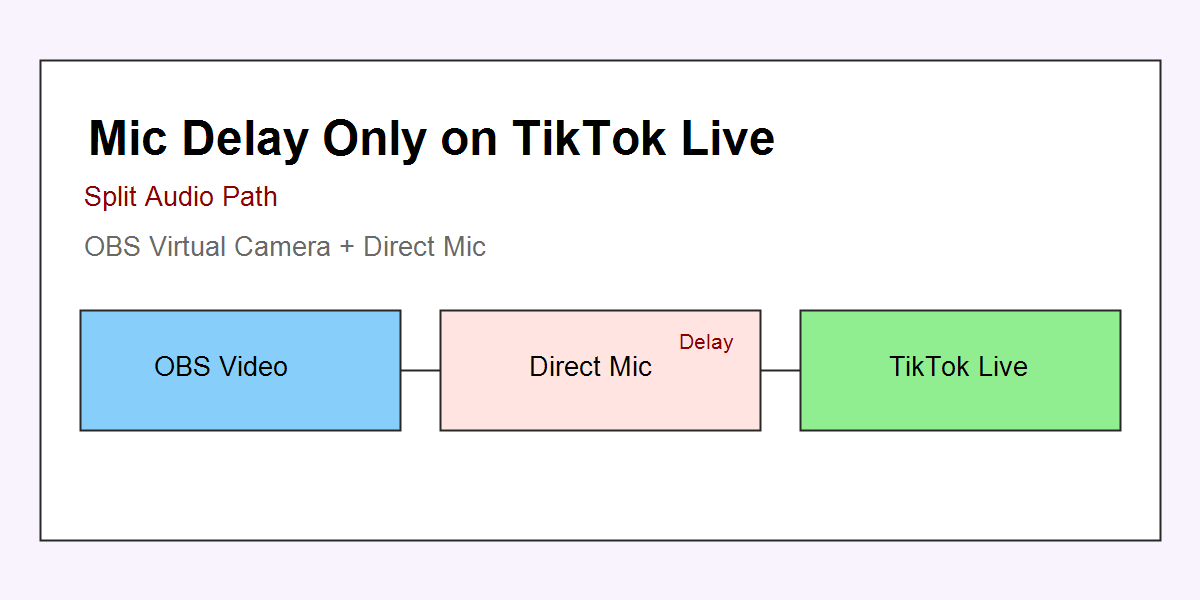
If your mic delay only happens on TikTok Live, the most likely cause is a split audio path, not a broken mic.
The Reddit-Style Problem
You hit Go Live. Your OBS preview looks perfect. Your mic is fine on Twitch and your local recordings. But on TikTok Live? Your voice shows up late, like you are lip-syncing yourself.
This is one of the most common TikTok Live Studio failures because it looks like a platform bug. It usually is not.
Why It Only Happens on TikTok Live
Twitch and YouTube take one packaged stream from OBS. TikTok Live Studio often does not. Most creators feed video from OBS Virtual Camera, but audio directly from a mic or a virtual cable. That creates two independent clocks and two different buffers.
If TikTok’s mic path adds even 150–300ms of buffering, you get a delay that only exists on TikTok.
The Split Audio Path (Primary Cause)
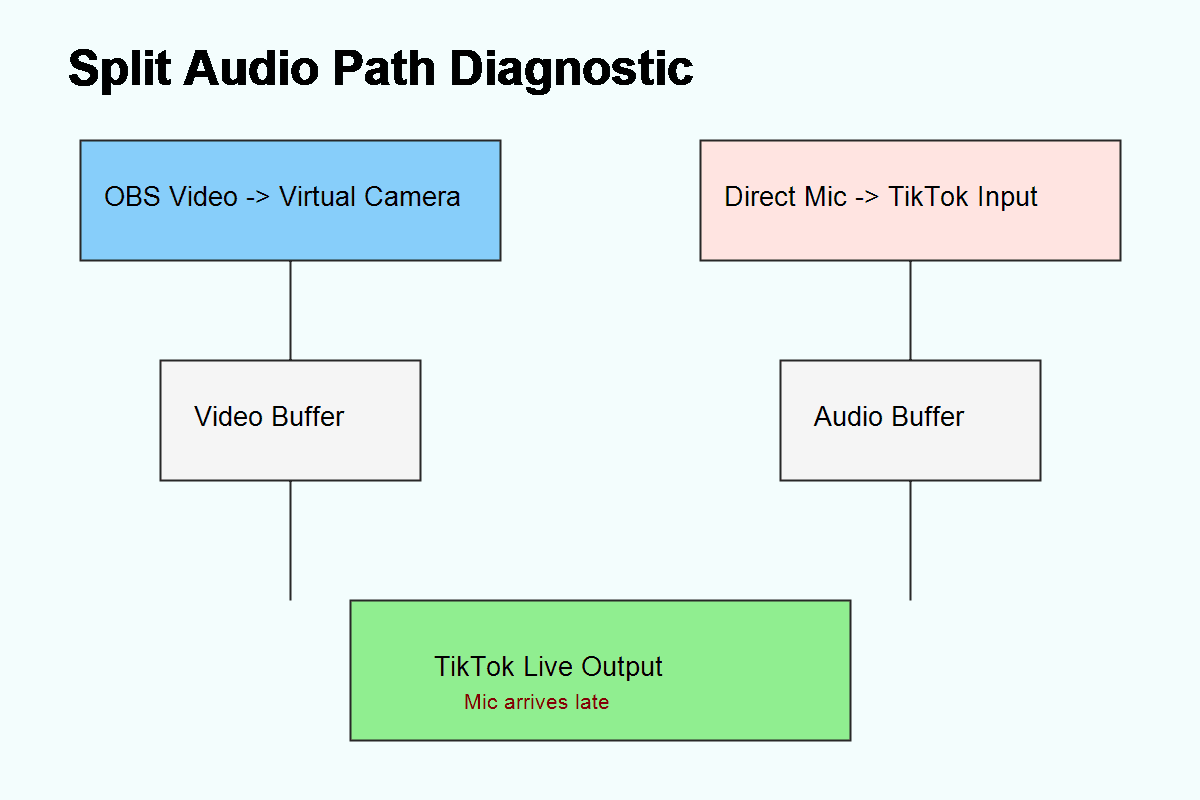
This diagram shows the split path that causes delay: video goes through OBS Virtual Camera, but audio goes through a different device into TikTok Live Studio. The common misattribution is blaming OBS. The real fix is unifying the audio path.
Fix Path A: Single-Path Audio (Recommended)
This is the cleanest fix because it removes competing clocks.
- In TikTok Live Studio, set the audio input to your virtual cable or OBS audio output, not the raw mic device.
- In OBS, keep your mic source active and route it into the virtual cable output.
- Disable the direct mic device inside TikTok Live Studio.
- Confirm all devices are set to 48kHz in Windows and OBS.
This makes TikTok receive the exact same audio timing that OBS uses.
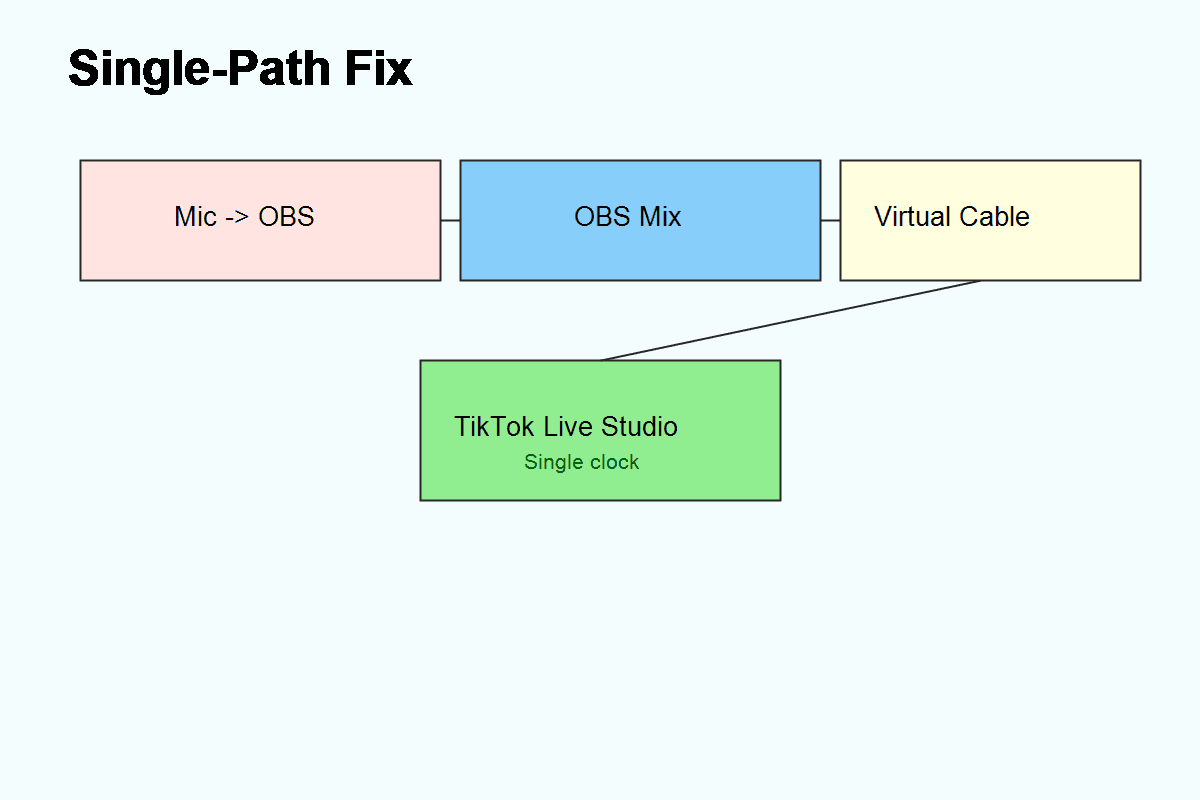
Single-path routing removes the competing clocks. TikTok receives the same audio timing as OBS, so the mic delay disappears.
Fix Path B: If You Must Use Direct Mic
If you cannot use a virtual cable, keep the mic direct and remove any extra buffering:
- Turn off Bluetooth headsets. Bluetooth adds delay that TikTok Live Studio exposes more than OBS.
- Disable OBS mic filters that add latency if TikTok is listening directly to the mic anyway.
- Avoid OBS audio monitoring on the mic source.
This does not fix the split path. It just reduces delay.
Quick Verification: The 20-Second Clap Test
- Start a private TikTok Live.
- Clap once on camera.
- Record 20 seconds.
- Check playback frame-by-frame.
If the clap sound is late, the audio path is still buffered. If it lines up, your fix worked.
Actionable Checklist
- TikTok Live Studio audio input is a single virtual cable or OBS audio output
- Direct mic input is disabled in TikTok Live Studio
- OBS audio monitoring is off for the mic
- All devices are set to 48kHz
- Bluetooth devices are not in the audio chain
FAQ
Why is my mic delayed only on TikTok Live?
Because TikTok Live Studio is probably using a different audio path than OBS, which adds its own buffering.
Does OBS Sync Offset fix this?
Only if TikTok is receiving OBS audio. If TikTok is listening to the mic directly, OBS offset does nothing.
Is Bluetooth causing the delay?
Often yes. Bluetooth adds extra latency that becomes obvious in TikTok Live Studio.
Do I need a virtual cable?
You do if you want a guaranteed fix. A single-path audio route is the most reliable way to remove delay.
Practical Conclusion
When mic delay only happens on TikTok Live, the platform is not “broken.” You are feeding TikTok a different audio clock than OBS. Unify the path, remove the split, and the delay disappears in one stream.