
- Published on
OBS Stream Looks Blurry Even With 'Recommended Settings'? (2026 Fix)
- Authors

- Name
- Robin
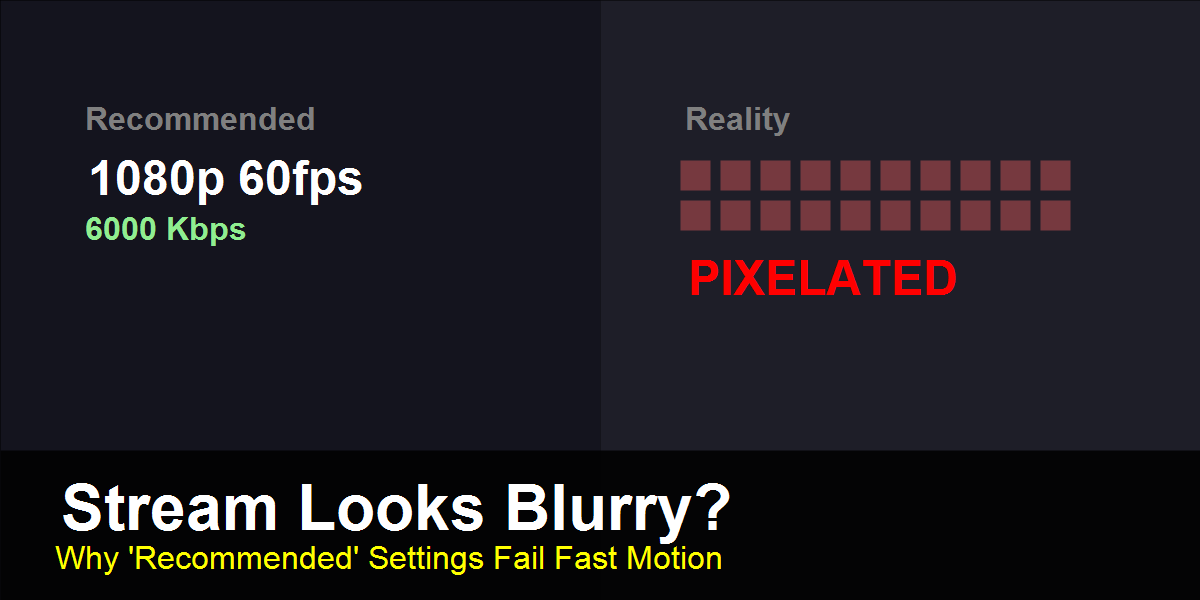
The 'Recommended' 1080p settings are often a trap for fast-paced games. Here's why the math doesn't add up.
Introduction (Reddit-Native Context)
In r/OBS, a daily post appears: "I have a 4090 and 1Gbps internet, but my stream looks blurry when I move. I'm using the recommended 1080p 6000kbps settings. Help!"
The frustration is real because the logic seems sound: Better Hardware + Higher Settings = Better Quality, right?
Wrong. Streaming quality isn't about raw power; it's about Data Density. The "Recommended Settings" from 2020 are lying to you about how video compression actually works in 2026.
The "Confetti Effect": Why Motion Kills Quality
When you stand still in a game, OBS only needs to send data for the few pixels that change (like a swaying tree). When you spin your camera or drive fast, every single pixel changes 60 times a second.
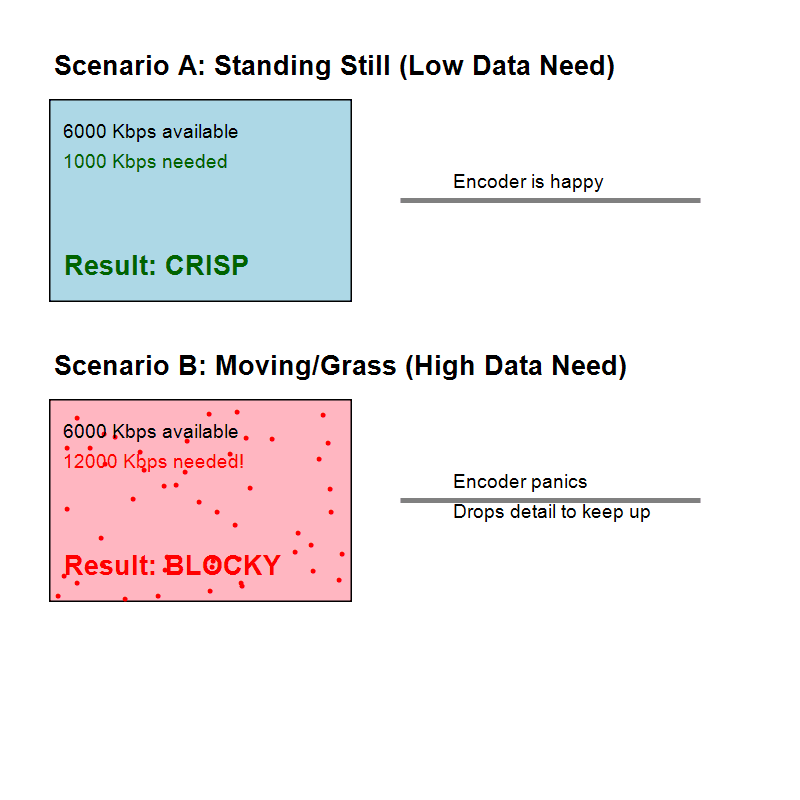
The Confetti Effect: Why your bitrate budget goes bankrupt during high motion.
As the diagram shows, 6000 Kbps is plenty for a static image (Scenario A). But in high motion (Scenario B), the scene requires 12,000+ Kbps to maintain detail. Since Twitch/YouTube caps you at 6000-8000 Kbps, the encoder has to panic. It survives by throwing away detail, resulting in that blocky, blurry mess.
The Solution: Increase "Bits Per Pixel" (BPP)
You can't increase the bitrate cap (platform rule). So, you must decrease the canvas size.
Think of bitrate like peanut butter. You have one spoonful (6000 Kbps).
- 1080p Canvas: You spread it over a huge slice of bread. It's thin and transparent (blurry).
- 936p Canvas: You spread it over a smaller cracker. It's thick and rich (sharp).
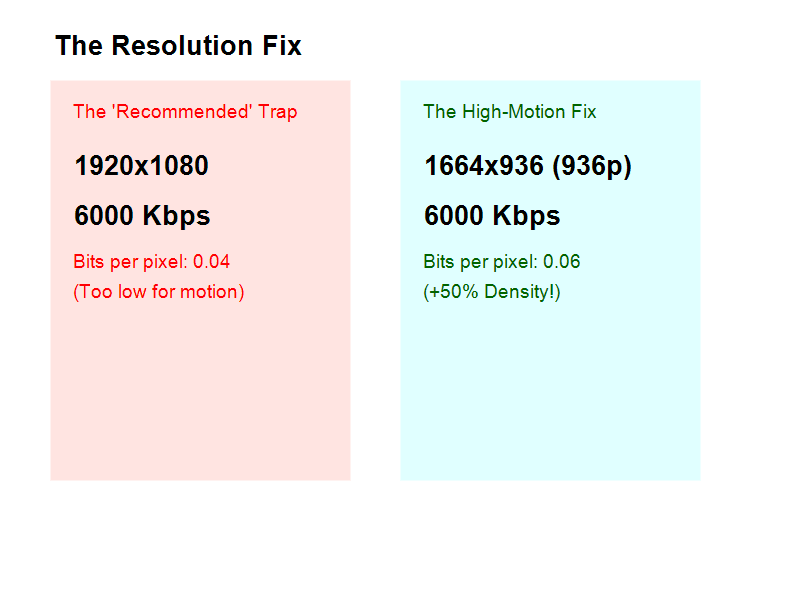
Dropping to 936p increases your data density by nearly 50%, making motion look significantly clearer.
The "Golden Ratio" Settings Fix
Stop using 1080p for high-motion games (FPS, Racing, Action RPGs). Use these mathematically superior settings:
1. The Magic Resolution: 1664x936 (936p)
Why 936p? It is divisible by 8, which makes encoding efficient (mod8 compliant). It looks almost identical to 1080p on a phone screen but requires 30% less data.
- Settings > Video
- Base Canvas: 1920x1080 (Your monitor)
- Output Scaled: 1664x936
- Downscale Filter: Lanczos (Sharpened scaling, 36 samples)
2. Encoder Tuning
If you have an NVIDIA card, stop using the default preset.
- Settings > Output > Streaming
- Encoder: NVIDIA NVENC H.264
- Rate Control: CBR
- Bitrate: 6000 Kbps (Twitch) / 10000+ Kbps (YouTube)
- Preset: P6: Slower (Better Quality)
- Multipass Mode: Two Passes (Quarter Resolution)
3. Disable "Look-Ahead"
For fast-paced games, uncheck Look-ahead. It uses GPU resources to guess future frames, but in chaotic games (Apex, CoD), it often guesses wrong, wasting resources. Keep Psycho Visual Tuning CHECKED.
Actionable Checklist
If your stream is still blurry, run this 30-second audit:
- Check Resolution: Are you strictly on 1664x936 (or 1280x720 if internet is weak)?
- Check Bitrate: Is it constant (CBR) at 6000+ Kbps?
- Admin Mode: Did you run OBS as Administrator? (Fixes GPU priority issues).
- Game Mode: Is Windows "Game Mode" ON? (It actually helps OBS now).
FAQ
Q: Why not just use 720p? A: 720p is great for density, but on a large desktop monitor, it can look a bit soft. 936p is the "Goldilocks" zone—sharp enough for PC viewers, dense enough for fast motion.
Q: My upload speed is 500 Mbps, can I set bitrate to 20,000? A: No. Twitch limits ingest to ~8000 Kbps (officially 6000). YouTube allows more, but requires you to upscale to 1440p to unlock the better VP9 codec.
Q: Does this apply to recording? A: No! For recording, use CQP (Constant Quantization Parameter) instead of CBR. Set CQP level to 20 for near-lossless quality.
Conclusion
A blurry stream isn't a hardware failure; it's a math failure. By swallowing your pride and dropping from 1080p to 936p, you trade a "high spec" number for a "high quality" viewing experience. Your viewers don't care about your settings page; they care about seeing the headshot clearly.