
- Published on
OBS Settings Checklist for TikTok Live (2026): A 10-Minute Preflight
- Authors

- Name
- Robin
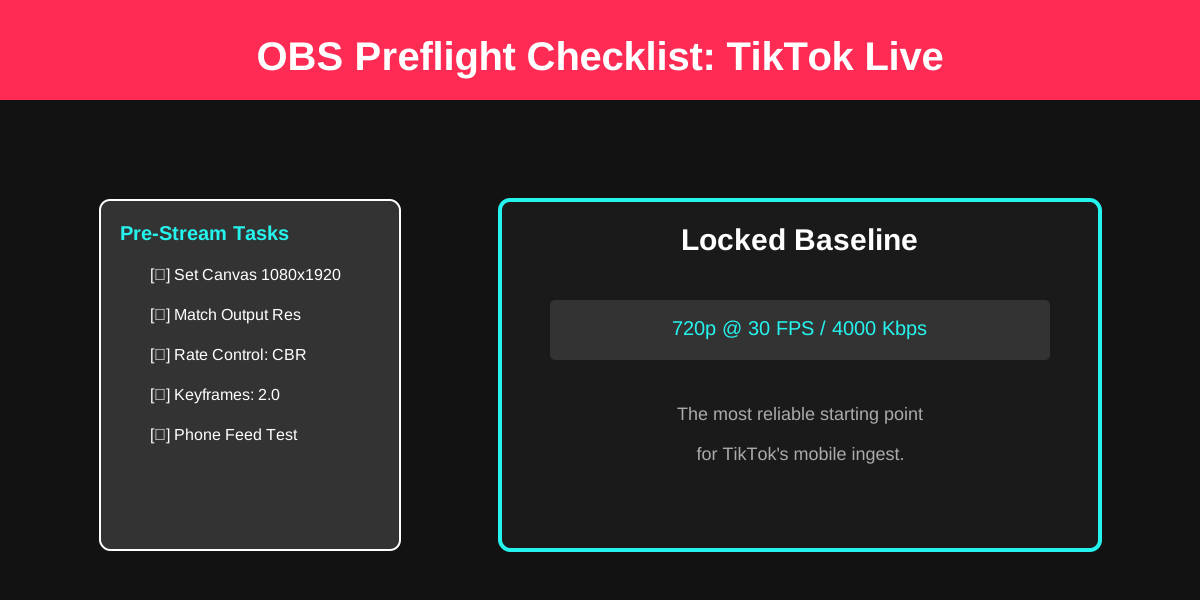
Lock in stream stability, image clarity, and audio sync with a standardized 10-minute pre-stream check.
Core Pain
Every stream starts with messy settings, leading to blur, lag, or audio delays due to a lack of a standardized check-in process.
Search Intent
Must-have OBS settings checklist for TikTok Live (2026 Edition).
Key Conclusion
Lock in stability with a 10-minute preflight: verify ingest path, lock vertical resolution, force CBR mode, set 2s keyframes, and unify at 48kHz.
- Step-by-Step Checklist (The 10-Minute Preflight)
- Step 1: Confirm Your Pipeline (This decides everything)
- Step 2: Set Your Target (Pick stability or pick a gamble)
- Step 3: Video Tab (Make TikTok’s rescaler do less work)
- Step 4: Output Tab (Streaming) — Non-Negotiables
- Step 5: Audio Tab (Fix the “why does it feel off?” problems)
- Step 6: Open OBS Stats and Look for the Real Failure Mode
- Step 7: Do a Phone Test (This is where the truth lives)
- Step 8: Save Two Profiles (So you stop panic-tuning midstream)
- Quick Decision Map (What to change first)
- Actionable Checklist (Copy/Paste Before Every Stream)
- FAQ
- Practical Conclusion
Introduction
The most common r/OBS TikTok Live question sounds like this:
“What OBS settings should I use for TikTok Live? My stream looks fine in preview, but TikTok looks blurry, stuttery, or delayed.”
And the replies usually split into three camps:
- The “max quality” crowd (1080x1920, high bitrate, 60 FPS)
- The “stability first” crowd (720x1280, 30 FPS, conservative bitrate)
- The “it’s not settings, it’s the pipeline” crowd (Virtual Camera caps, double-encoding, upload headroom)
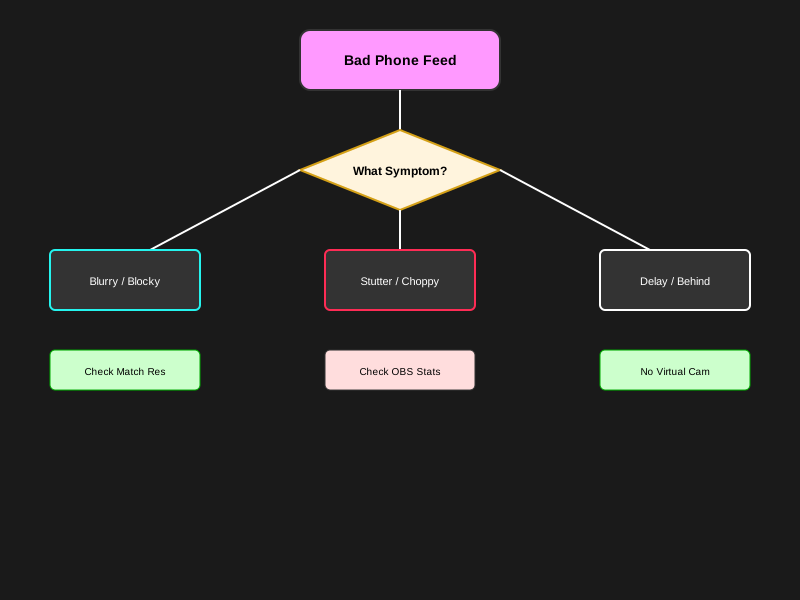
OBS Pre-stream Logic: Balancing ingest pipeline, target parameters, and performance metrics.
This post is a checklist that makes all three useful, without turning your stream into a science project.
Step-by-Step Checklist (The 10-Minute Preflight)
Step 1: Confirm Your Pipeline (This decides everything)
Pick one:
Option A: OBS → TikTok (Stream key / RTMP ingest)
If you have TikTok Live access to a stream key, this is the cleanest pipeline. You avoid extra capture layers and reduce “mystery blur.”
Option B: OBS → TikTok Live Studio (Virtual Camera / Capture)
This can work, but you must assume the output may get capped or rescaled depending on Live Studio settings and what it accepts that day.
If you’re troubleshooting, write down which option you’re using before changing anything else.
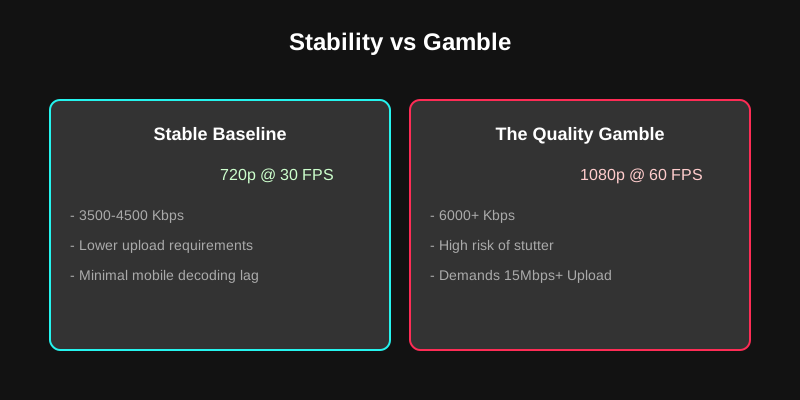
Stability Pillars Checklist: Confirming the best match for resolution, frame rate, bitrate, and encoder settings.
Step 2: Set Your Target (Pick stability or pick a gamble)
Choose a baseline you can actually sustain for hours:
- Stable baseline: 720x1280 at 30 FPS
- Higher risk baseline: 1080x1920 at 60 FPS
If you don’t know which to pick, start at 720p30. You can earn your way up after your feed looks clean on a phone for 20 minutes.
Step 3: Video Tab (Make TikTok’s rescaler do less work)
In OBS Settings → Video:
- Base (Canvas): 1080x1920 (vertical)
- Output (Scaled): match Base exactly (avoid constant rescale)
- FPS: 30 first; 60 only after you confirm zero encoding/rendering lag
If your content is a fast shooter, 60 FPS can look better, but only if it doesn’t cause missed frames or bitrate spikes.
Step 4: Output Tab (Streaming) — Non-Negotiables
In OBS Settings → Output:
- Output Mode: Advanced
- Rate Control: CBR
- Keyframe Interval: 2 seconds
- Encoder: Hardware encoder (NVENC / Quick Sync / AMD) if available
Bitrate starting points (don’t treat these as commandments):
- 720p30: 2500–4000 Kbps
- 1080p60: 4500–6000 Kbps (only if you have real upload headroom)
If your upload is “10 Mbps,” do not stream at 10 Mbps. Leave headroom or you’ll create micro-stutter that only TikTok viewers see.
Step 5: Audio Tab (Fix the “why does it feel off?” problems)
In OBS Settings → Audio:
- Sample Rate: 48 kHz (keep it consistent with your interface and Windows/macOS)
- Monitor your mic and game audio levels so you’re not clipping
If your stream “feels delayed,” audio mismatch and buffering are common culprits. Consistency matters more than fancy filters.
Step 6: Open OBS Stats and Look for the Real Failure Mode
In OBS: View → Stats. Watch for 3 minutes while gaming:
- Dropped Frames (Network): upload instability or bitrate too high
- Rendering Lag: GPU overload (often uncapped game FPS, heavy scene, or browser sources)
- Encoding Lag: encoder overload (preset too heavy, wrong encoder choice)
If any of these are non-zero during your gameplay, TikTok viewers will feel it.
Step 7: Do a Phone Test (This is where the truth lives)
TikTok Live is mobile-first. Test like a viewer:
- Watch your stream on a phone over cellular
- Pay attention to fast motion (turns, flicks, explosions)
- Ask a friend to confirm “does it feel 30 or 60?”
OBS preview can look perfect while TikTok playback is degraded. The phone test is your only honest mirror.
Step 8: Save Two Profiles (So you stop panic-tuning midstream)
Create two OBS Profiles:
- “TikTok Stable 720p30”
- “TikTok High 1080p60”
When your stream gets weird, you switch profiles. You don’t start random slider experiments while you’re live.
Quick Decision Map (What to change first)
OBS Feed Triage Flowchart: Pinpointing root causes by symptoms to avoid blind setting adjustments.
Stable vs Gamble Bitrate: A visual comparison of how bitrate headroom impacts stream smoothness.
This diagram is here to stop the most common mistake: changing five settings at once. Pick the symptom, fix the first-order cause, then re-test on a phone.
Actionable Checklist (Copy/Paste Before Every Stream)
- Confirm pipeline: Stream key or Virtual Camera
- Choose baseline: 720p30 or 1080p60
- Match Base and Output resolution (vertical)
- Set CBR + keyframes=2
- Set bitrate with upload headroom
- Check OBS Stats for 3 minutes in real gameplay
- Watch on a phone over cellular
- Save/lock two profiles (Stable + High)
FAQ
Should I stream 60 FPS on TikTok Live?
Only if your phone test looks smooth and OBS Stats show no encoding/rendering/network issues. A clean 30 FPS stream beats a “fake 60” stream that stutters.
What bitrate should I use for TikTok Live in OBS?
Start conservative, then scale up. If you ever see network dropped frames, your bitrate is already too high for your real conditions.
NVENC vs x264: which is better for TikTok Live?
Most gaming rigs do better with hardware encoding because it avoids CPU spikes. x264 can look great, but it’s easier to overload while gaming.
Why does TikTok look worse than OBS preview?
Preview is local. TikTok viewers see the result after encoding, upload, ingest, and mobile playback. Any bottleneck in that chain can soften or stutter the feed.
I’m using TikTok Live Studio with Virtual Camera—why is it capped?
Some pipelines add implicit scaling/caps depending on how Live Studio captures and re-encodes the input. If you can use a stream key, it’s usually a cleaner route.
Practical Conclusion
If you want a TikTok Live that looks professional, stop hunting for a mythical “best settings” screenshot. Build a repeatable preflight: pick a stable baseline, match vertical resolutions, lock CBR with keyframes=2, verify OBS Stats, then test on a real phone feed. Once you’re stable, you can push quality. Until then, stability is the whole game.