
- Published on
TikTok Live Preview vs. Reality: Why Your Stream Blurs the Moment You Go Live (2026)
- Authors

- Name
- Robin
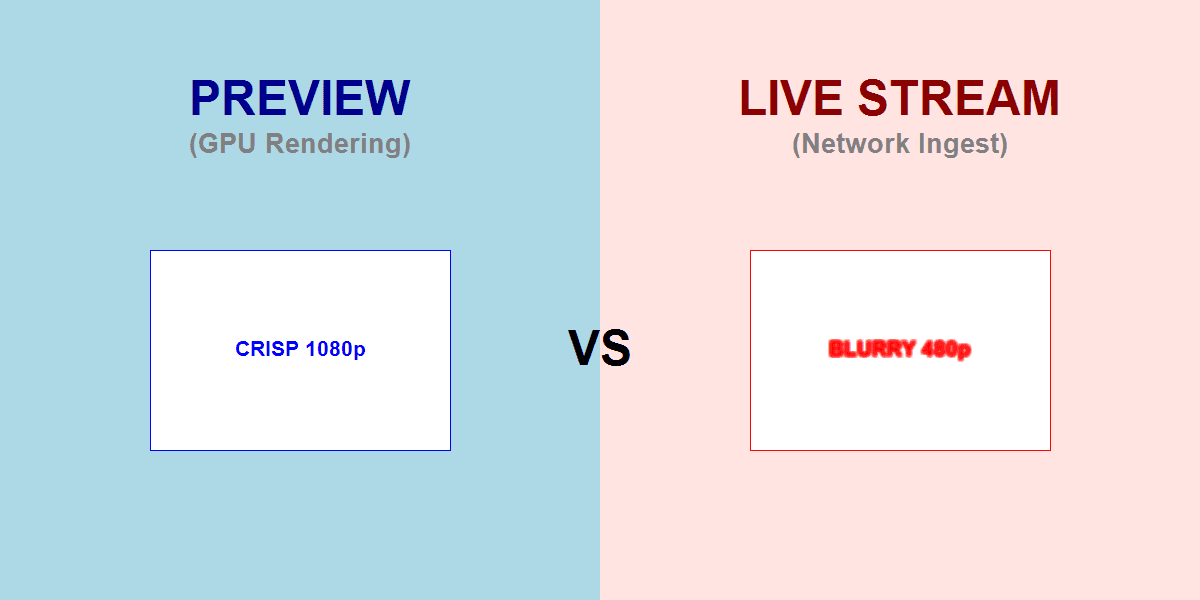
The "Preview Lie"
You spend hours tweaking your OBS or TikTok Live Studio (TTLS) scenes. The text is sharp, the camera is crisp, and the gameplay is smooth. You hit "Go Live."
Then you open your phone to check the stream, and your heart sinks. It looks like a smear of vaseline.
You look back at your monitor: still crisp. You look at your phone: still blurry.
This disconnect happens because your preview window and your viewers are seeing two completely different things.
The Invisible Path (Where the Blur Happens)
When you look at your preview, you are seeing what your GPU is drawing. It hasn't been compressed, sent over the internet, or processed by TikTok yet.
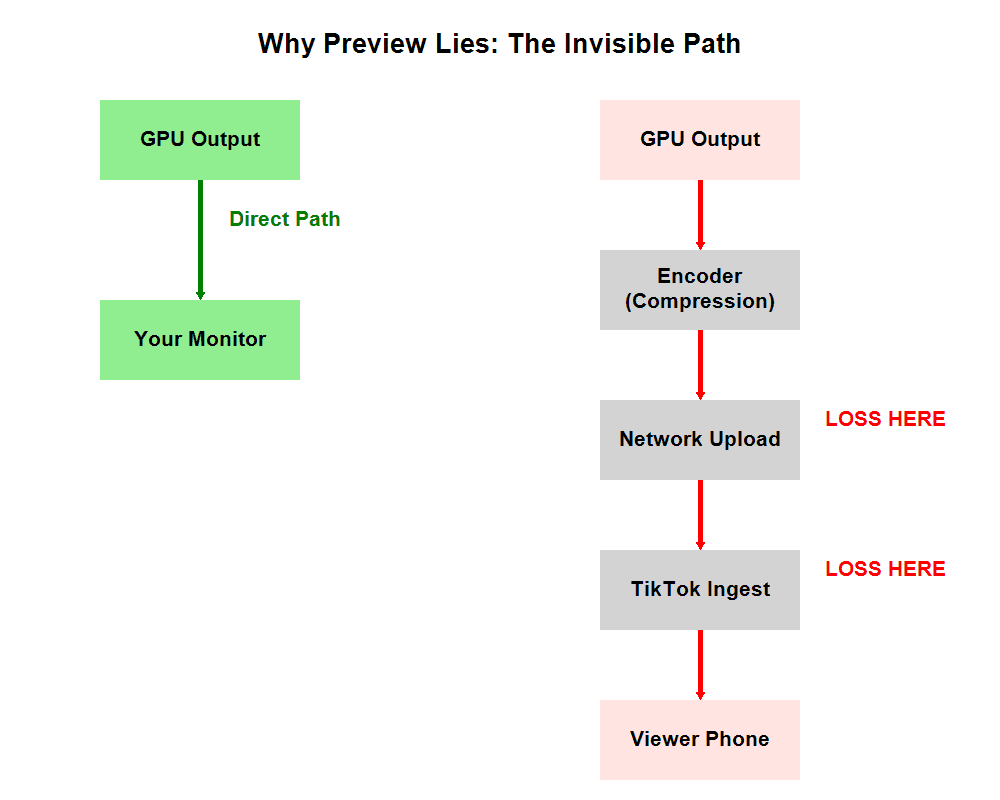
The blur doesn't happen on your screen. It happens in the "Dangerous Path" between your encoder and the viewer's phone.
There are three main culprits for this specific "Preview vs. Reality" gap:
- The "Dynamic" Trap (TTLS specific)
- The Transcoding Penalty (Sending 1080p when you shouldn't)
- Bitrate Instability (The "Speed Test" lie)
Culprit 1: The "Adjust Settings Automatically" Trap
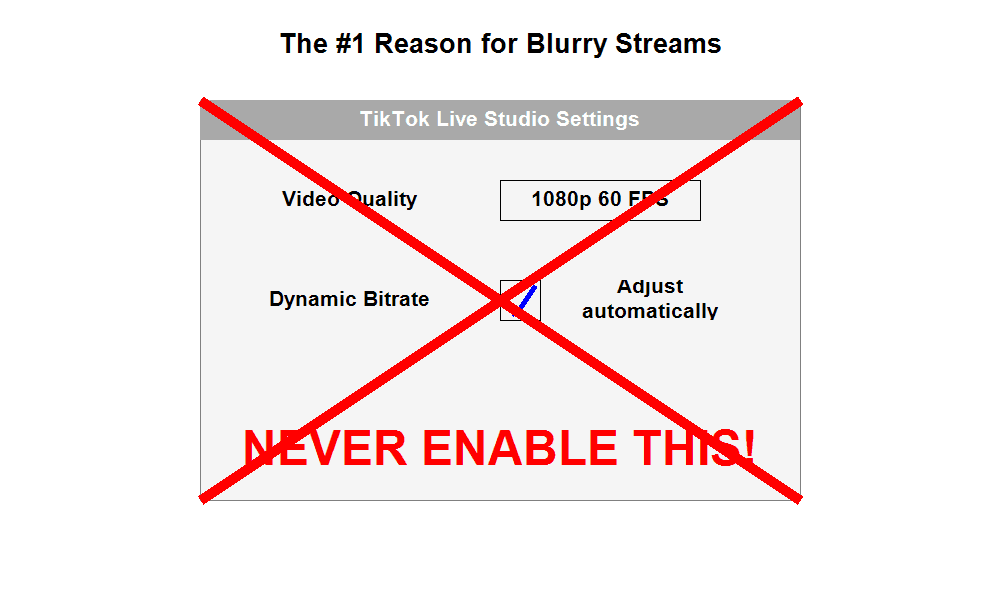
If you use TikTok Live Studio, there is a setting that sounds helpful but is actually the #1 cause of blurry streams for new creators.
It's called "Adjust settings automatically" (or sometimes "Dynamic Bitrate").
Why it hurts you
When this is checked, TikTok Live Studio constantly monitors your internet. If it detects even a micro-second of instability (which happens constantly on Wi-Fi), it instantly slashes your resolution and bitrate to keep the stream online.
It prioritizes not crashing over looking good. So you get a stream that never buffers, but looks like 360p mush.
The Fix:
- Go to Settings → Video Quality.
- Select "Custom".
- Uncheck "Adjust settings automatically".
- Manually set your Bitrate and Resolution (see below).
Culprit 2: The Transcoding Penalty
You might think: "I'll send 1080p at 8000 Kbps, that will look great!"
If you are not a "managed partner" (a top-tier creator), TikTok's ingest server often refuses to pass through that high bitrate. Instead, it transcodes (re-compresses) your stream down to what it thinks you deserve (often 720p at ~2500 Kbps).
This server-side crushing looks significantly worse than if you had just sent a clean 720p stream in the first place.
The Fix: Don't fight the server. Feed it what it wants.
- Resolution: 720x1280 (Vertical 720p)
- Bitrate: 4000 Kbps (CBR)
- FPS: 60 (if stable) or 30
A native 720p stream that isn't crushed by the server looks sharper than a 1080p stream that got mangled.
Culprit 3: The "Speed Test" Lie
"But I have 500 Mbps upload!"
Speed tests measure your peak speed to a local server. Streaming needs sustained speed to a specific ingest server in a different state/country.
If your upload fluctuates between 500 Mbps and 5 Mbps (common on Wi-Fi), your preview will look fine (because it's local), but the ingest server will see those drops and blur the stream to compensate.
The Fix:
- Use Ethernet. Period. Wi-Fi is the enemy of stability.
- Cap your bitrate. If you have 10 Mbps upload, do not set your bitrate to 8000 Kbps. Set it to 4000 Kbps. Leave "headroom" for the fluctuations.
Summary Checklist: How to Trust Your Stream
If your preview is clear but your stream is blurry:
- Disable "Adjust Automatically" in TTLS.
- Lower Resolution to 720x1280.
- Lower Bitrate to 4000 Kbps (CBR).
- Use Ethernet, not Wi-Fi.
- Check on Data: Turn off Wi-Fi on your phone and check the stream on 4G/5G. Sometimes your home Wi-Fi is the bottleneck for downloading the stream too.
FAQ
"Is 720p really enough for gaming?"
On a phone screen? Yes. A crisp 720p stream looks better than a blurry 1080p stream. Most viewers can't tell the difference on a 6-inch screen, but they can tell if it's blocky.
"Why does it look good for 5 minutes then drop?"
That's thermal throttling or network congestion. If it degrades over time, your PC might be getting too hot (laptop users) or your ISP is throttling your sustained upload.
"Does changing the server location help?"
In OBS, yes. In TTLS, it's automatic. If you use OBS, try a different ingest server (e.g., rtmp-push.tiktokv.com) if the default one is lagging.
Conclusion
Your preview window is a liar. It shows you what could be, not what is. The only truth is what shows up on your phone. Stop trusting the preview, disable the "Auto" settings, and force a stable, modest bitrate that survives the journey to the viewer's screen.