
- Published on
Dropped Frames Only on TikTok Live? Why OBS Is Fine Everywhere Else (2026)
- Authors

- Name
- Robin
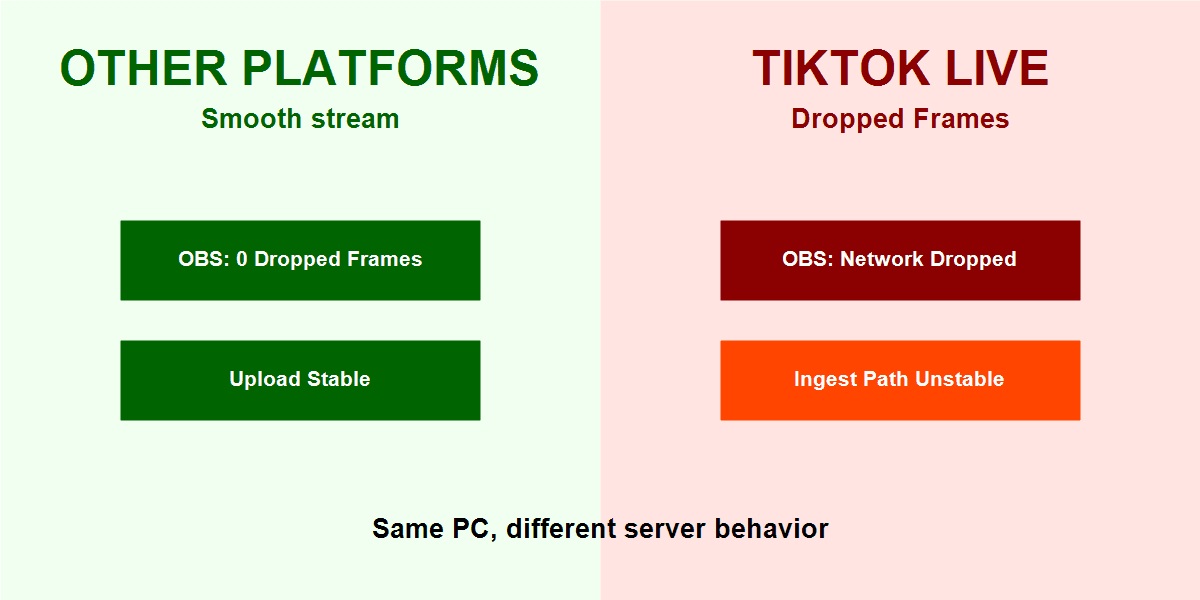
Caption: A split view shows stable streaming on other platforms while TikTok Live drops frames, highlighting that the server path can be the real failure point.
Introduction: The “TikTok Only” Mystery
This is a classic r/OBS problem: everything looks perfect on Twitch or YouTube, but TikTok Live flashes Dropped Frames (Network) in OBS and viewers see stutter. That mismatch triggers the wrong fix. You start lowering game settings, swapping encoders, or even planning a PC upgrade.
If the same OBS settings are stable elsewhere, your PC is not the bottleneck. The path to TikTok is.
The Problem: Why This Only Happens on TikTok Live
TikTok’s ingest system is strict about consistent delivery. It punishes micro-spikes in upload more aggressively than other platforms. The result is a stream that looks fine in OBS preview and on Twitch, yet drops frames on TikTok Live alone.
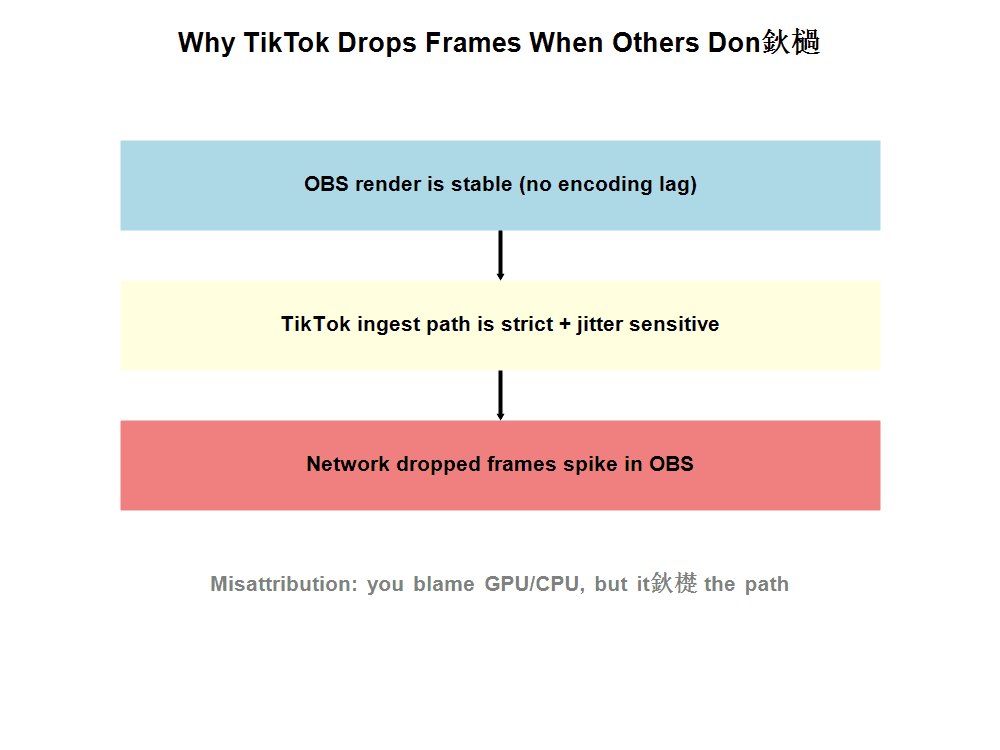
Caption: This diagnostic flow shows how a stable local render can still produce network dropped frames when the ingest path is jitter-sensitive, a common misattribution that sends creators toward the wrong fixes.
The Causes (In Order of Likelihood)
1. Your TikTok Ingest Path Is Not the Closest One
TikTok’s RTMP endpoints are not all equal. A generic URL can route you to a congested or distant ingest, even if your upload speed is fine.
Why it matters: You are not “slow,” you are unstable. Short spikes of latency cause TikTok to drop frames while Twitch absorbs them.
2. TikTok Is Stricter About Bitrate and Keyframes
TikTok expects a steady, predictable stream. If your bitrate or keyframe interval is loose, ingest tolerance drops fast.
Common mismatch:
- Bitrate set close to your real upload.
- Keyframe interval not locked at 2 seconds.
- “Quality first” settings that create bitrate spikes.
3. Upload Jitter (Not Speed) Is the Real Break
Speed tests lie. Streaming is sustained. Your upload can spike for 2 seconds and recover while TikTok drops frames instantly. Bufferbloat or Wi‑Fi burstiness can trigger it even when your Mbps looks strong.
Fix-Oriented Checklist (Start Here)
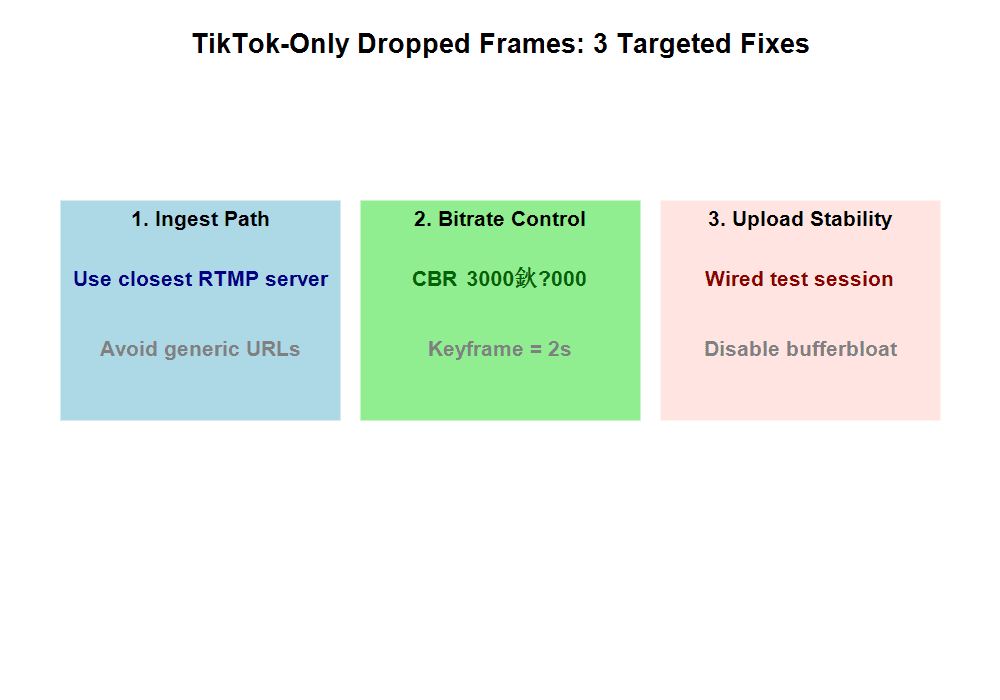
Caption: This targeted checklist isolates TikTok-specific instability causes, correcting the common mistake of blaming CPU/GPU when the ingest path is the real problem.
1) Confirm It’s Network Dropped Frames
Open View → Stats in OBS and watch Dropped Frames (Network) for 5–10 minutes. If that counter increases, you are dealing with a network path problem, not rendering or encoding lag.
2) Lock Bitrate and Keyframes
- Rate Control: CBR
- Bitrate: 3000–4000 kbps
- Keyframe Interval: 2s
- Enable Dynamic Bitrate in OBS Advanced → Network
3) Force a Stable Upload Path
- Run one test session on wired Ethernet
- Pause cloud sync and background downloads
- If possible, select the closest ingest region in TikTok Live settings or your RTMP panel
4) Test for Bufferbloat
If the issue is intermittent, your router may be the bottleneck. A bufferbloat-heavy router looks fast on speed tests but drops frames under sustained upload.
Actionable Checklist (Print This)
- OBS Stats shows Dropped Frames (Network), not encoding/rendering lag
- Bitrate fixed at 3000–4000 kbps with CBR
- Keyframe interval locked to 2 seconds
- Dynamic bitrate enabled
- Wired test session completed
- Ingest path checked for closest server
FAQ
“Why is TikTok dropping frames when Twitch is fine?”
TikTok’s ingest system is more jitter-sensitive. Twitch absorbs short spikes that TikTok rejects.
“My upload speed is high. Why does TikTok still drop frames?”
Speed isn’t stability. Micro-spikes or bufferbloat can break TikTok even when Mbps looks great.
“Should I lower resolution to 720p?”
Only if you are seeing encoding lag. If the issue is network dropped frames, fix the path and bitrate first.
Practical Conclusion
If dropped frames happen only on TikTok Live, stop treating it like a general OBS performance issue. Your PC already proved it can stream. The problem is the TikTok ingest path and its intolerance for jitter. Stabilize the path, lock your bitrate, and the drops disappear without a hardware upgrade.