
- Published on
The Complete OBS Setup Framework for TikTok Live (Not a Checklist)
- Authors

- Name
- Robin
TL;DR
Stop copying "Best Settings 2026" videos. They don't know your upload speed or PC specs. Instead of a fragile checklist, use the Three-Layer Framework: Network (Stability), Encoder (Efficiency), and Canvas (Composition). If the bottom layer fails, the top layers don't matter.

The "Best Settings" Trap
We've all seen the posts on r/OBS:
"I copied XQC's settings but my stream is lagging and pixelated. I have a 4090 and Gigabit internet. Help?"
The problem isn't your hardware. The problem is that you're treating OBS settings like a cheat code you can just type in. Streaming isn't static; it's a balancing act between your internet stability, your PC's encoding power, and TikTok's ingest servers.
A checklist is fragile. If one thing is different (like your ISP having jitter at 8 PM), the whole thing collapses. You need a Framework.
The Mental Model: The 3 Layers of TikTok Live
Think of your stream as a pyramid. You cannot build the top without the bottom.

Caption: Most people start at Layer 3 (Canvas/Overlays) and ignore Layer 1 (Network). This is why your beautiful overlays look like a smeary mess on mobile.
Layer 1: The Network (The Pipe)
This is the boring part that everyone skips. It doesn't matter if you output 4K resolution if your "pipe" to TikTok is clogged or leaky.
- Goal: 0% Dropped Frames (Network).
- Reality: TikTok servers are not as robust as Twitch. They reject unstable connections aggressively.
- The Fix: Use a wired Ethernet connection. WiFi is a gamble you will lose.
Layer 2: The Encoder (The Engine)
This is where your PC turns images into data.
- Goal: efficient compression.
- Constraint: Mobile phones have weak decoders. Throwing 15,000 kbps at a phone will make it overheat or buffer, not look better.
Layer 3: The Canvas (The Painting)
This is what you actually see.
- Goal: Readability on a 6-inch screen.
- Mistake: Shrinking a 1080p desktop UI down to phone size. Text becomes unreadable.
Implementing The Framework
Now that we have a mental model, let's fill in the numbers. But remember: Test, don't copy.
Step 1: Secure Layer 1 (Network)
Before you open OBS settings, run a jitter test (like Cloudflare Speed Test).
- Upload Speed: You need at least 10 Mbps upload for a stable 1080p stream.
- Jitter: If this is high (>30ms), your bitrate must be lower, regardless of your speed.
Step 2: Budget Your Bitrate (Layer 2)
TikTok has a "Sweet Spot" for bitrate. Unlike YouTube, where "more is better," TikTok punishes you for going too high.
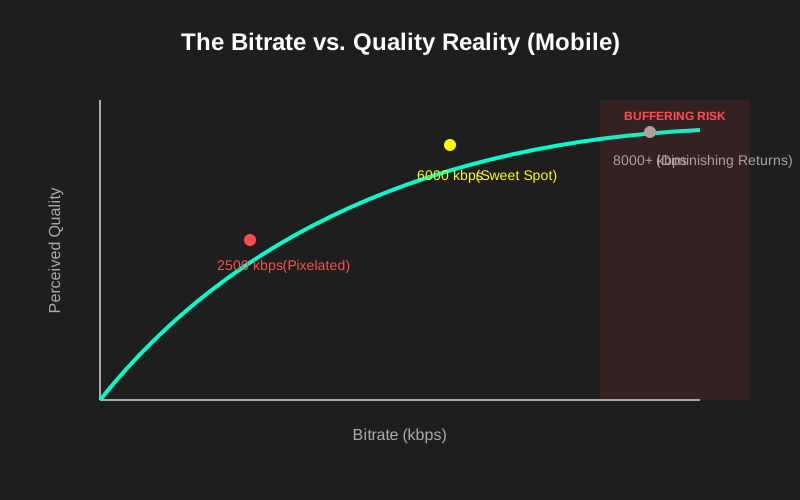
Caption: pushing past 6000-7000 kbps yields very little visual improvement on a phone screen but drastically increases the chance of viewer buffering.
- The Golden Rule:
CBR(Constant Bitrate) is mandatory. Variable bitrate (VBR) saves space but causes lag spikes. - Safe Start: 4000 kbps.
- High Quality: 6000 kbps.
- "I have fiber": 8000 kbps (Max). Going higher often results in the "source error" or black screen for mobile viewers on data.
Step 3: Compose for the Phone (Layer 3)
- Resolution: 1080x1920 (Vertical).
- FPS: 60fps is standard for gaming. 30fps is fine for "Just Chatting" and saves bitrate (allowing clearer image per frame).
- Keyframe Interval: Set to 2s. This is non-negotiable for TikTok's ingest protocol.
The Actionable "Not-A-Checklist"
Instead of "Copy these settings," do this:
- Start Low: Set Bitrate to 4500 kbps, Preset to P5 (NVIDIA) or Medium (x264).
- Test Run: Stream to a test account or "Only Me" if available (or just go live and watch from a phone on 4G/5G).
- Check for "Network Drops": In OBS Stats Dock (View -> Stats), look at "Dropped Frames (Network)". If it's > 0.1%, LOWER your bitrate. Do not touch your resolution.
- Check for "Rendering Lag": If "Frames missed due to rendering lag" is red, run OBS as Administrator or cap your in-game FPS.
- Scale Up: If stable for 10 mins, increase bitrate by 500 kbps. Repeat until you hit 6500-7000 or instability occurs.
FAQ
Q: Why does my stream look pixelated during movement? A: Fast movement requires more data. If you are capped at 6000 kbps, you might need to lower your resolution to 720p (720x1280) to make the image look "cleaner" even if it's smaller. Sharp 720p > Blocky 1080p.
Q: Can I use H.265 / HEVC? A: TikTok supports it, but it's risky. Some older viewer phones will see a black screen. H.264 (NVIDIA NVENC / x264) is the safest bet for maximum reach.
Q: My OBS says "Encoding Overload"? A: You are overloading Layer 2. Lower your preset (e.g., go from P6 to P4) or cap your game's framerate. Your GPU is choking.
Conclusion
There is no "Best Setting." There is only the setting that fits your specific combination of ISP stability, hardware power, and content type. Build your setup from the bottom up (Network -> Encoder -> Canvas), and you'll stop troubleshooting and start streaming.