
- Published on
Why “Output Settings Checklists” Fail on TikTok Live (OBS Reality Check) (2026)
- Authors

- Name
- Robin
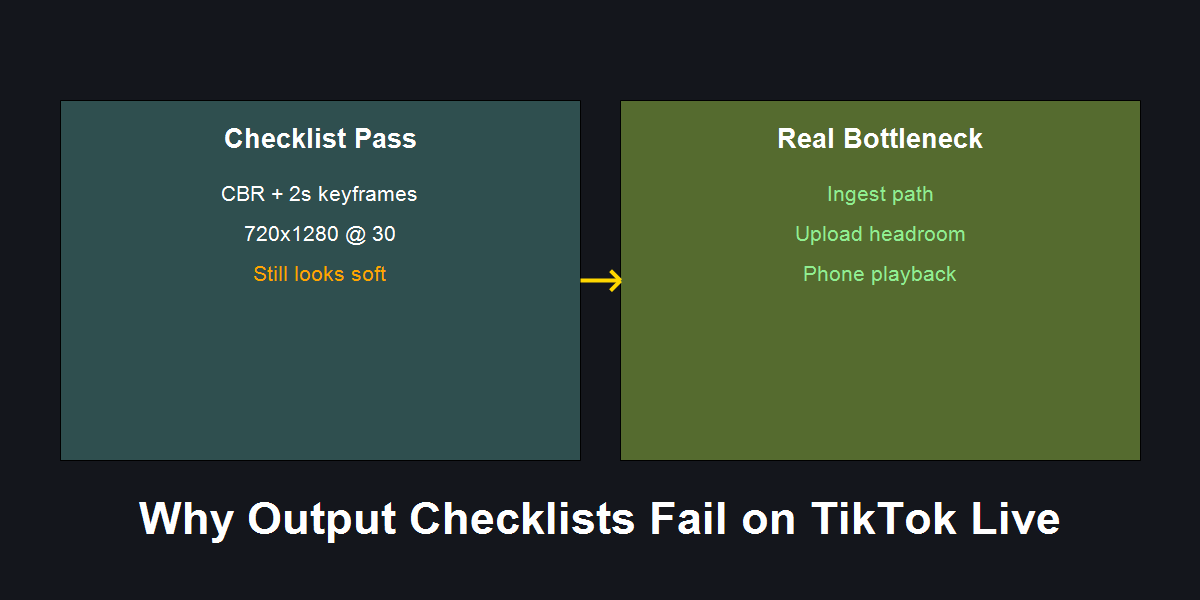
Passing a settings checklist does not guarantee TikTok Live quality. The bottleneck is often outside OBS.
Core Pain
You followed an OBS checklist, but TikTok Live still looks blurry, stuttery, or delayed.
Search Intent
Why do OBS output settings checklists fail for TikTok Live quality?
Key Conclusion
Checklists only control your encoder. TikTok Live quality depends on ingest path, upload stability, and phone playback, which a checklist cannot see.
- Introduction (Reddit-native context)
- Why Output Checklists Fail
- Symptom → Cause → Fix (What to measure instead)
- The Anti-Checklist: What actually works
- Actionable Checklist (Diagnostic Edition)
- FAQ
- Practical Conclusion
Introduction (Reddit-native context)
r/OBS is full of “post your settings” threads. The same checklist repeats: CBR, 2s keyframes, 720p30. You apply it and still get a soft, stuttery TikTok Live.
This is why creators say “checklists don’t work.” The checklist isn’t wrong. It’s incomplete. It controls what OBS can control, but the failure is often in everything after OBS.
Why Output Checklists Fail
Checklist settings are necessary. They are not sufficient. TikTok Live quality depends on three hidden layers:
Ingest path (how you get to TikTok)
Stream key vs Live Studio vs Virtual Camera can add silent scaling or re-encoding.Upload headroom (what your network can really sustain)
A 10 Mbps speed test does not mean a stable 10 Mbps for two hours.Phone playback (the only truth)
OBS preview can look clean while TikTok looks soft due to mobile re-encode and adaptive delivery.
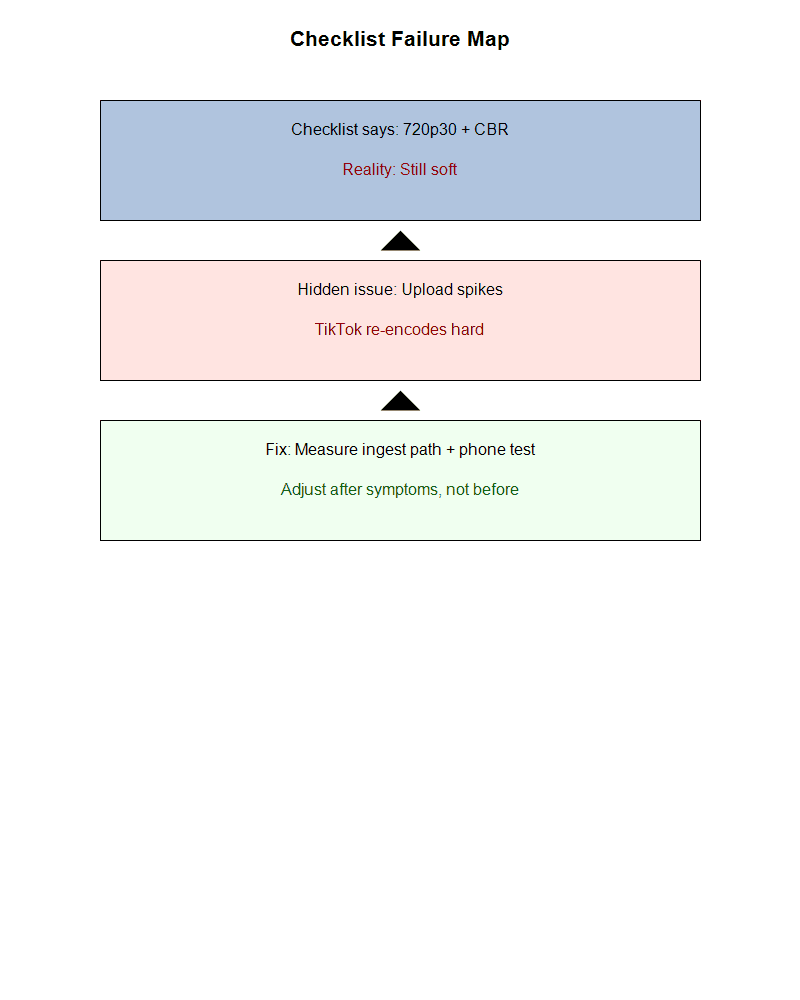
Checklist failure map: passing settings still fails when upload spikes or ingest adds re-encoding.
Symptom → Cause → Fix (What to measure instead)
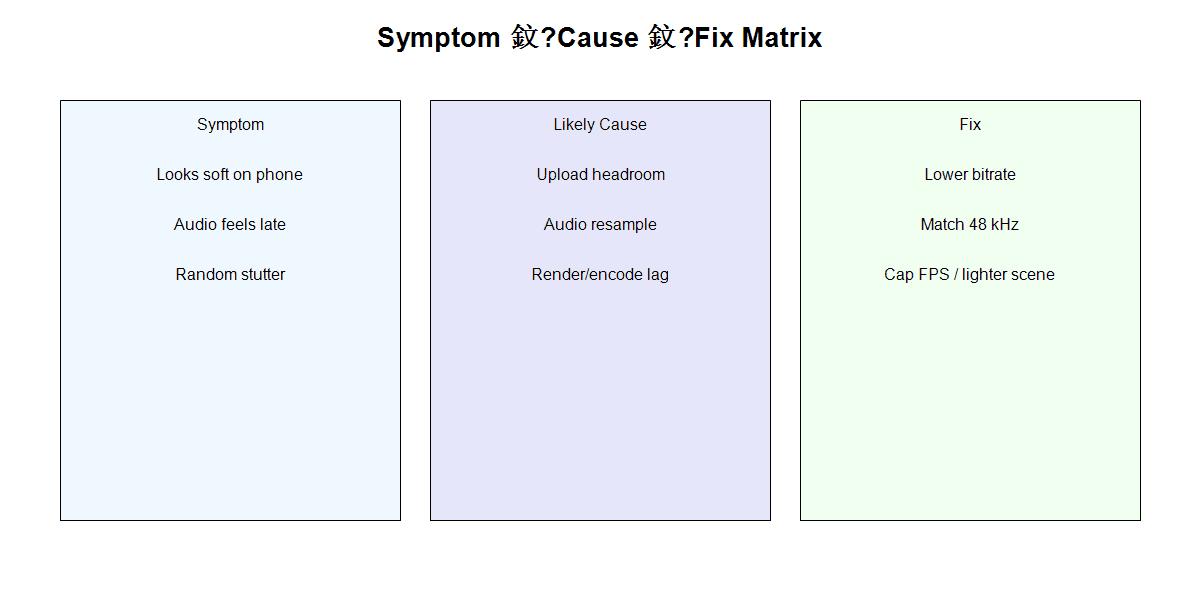
Instead of memorizing settings, measure symptoms and map them to causes. That is how you fix TikTok Live quality.
Symptom: Soft image on phone
- Cause: Upload headroom too low or TikTok re-encoding aggressive
- Fix: Lower bitrate, confirm stable upload, test on cellular
Symptom: Audio feels late
- Cause: Mixed sample rates or buffering
- Fix: Match everything to 48 kHz, avoid resampling
Symptom: Random stutter
- Cause: Rendering/encoding overload
- Fix: Cap game FPS, simplify scenes, reduce encoder preset
The Anti-Checklist: What actually works
Instead of blind settings, use a short diagnostic loop:
- Pick a conservative baseline (720p30, CBR, 2s keyframes)
- Stream for 10 minutes
- Check OBS Stats for dropped/encoding/rendering lag
- Watch on a phone over cellular
- Change only one variable
If you pass all five steps and it still looks soft, the issue is almost always ingest path (Live Studio capture caps or re-encode).
Actionable Checklist (Diagnostic Edition)
- Confirm ingest path (stream key vs Live Studio)
- Watch OBS Stats for 10 minutes
- Phone test on cellular, not Wi‑Fi
- Match audio sample rate to 48 kHz
- Change one variable at a time
FAQ
Q: Why does the same checklist work on Twitch but not TikTok Live?
A: TikTok’s ingest and mobile re-encode are less forgiving. Twitch tolerates spikes that TikTok will crush.
Q: Should I still use checklists?
A: Yes, as a baseline. Just don’t assume it guarantees quality.
Q: What’s the most common “hidden” failure?
A: Upload headroom. Most home connections spike or drop after 20–30 minutes, which TikTok penalizes.
Practical Conclusion
OBS checklists are guardrails, not solutions. TikTok Live quality fails when the bottleneck is outside OBS. Measure the ingest path, test on phone, and treat symptoms instead of repeating the same checklist expecting a different result.