
- Published on
Encoding Overload Only on TikTok Live? Fixing Vertical Stream Bottlenecks (2026)
- Authors

- Name
- Robin

Encoding overload isn't always about your PC not being fast enough; it's often about 'traffic congestion' when data is moved between different software.
Core Pain: OBS is perfectly smooth when streaming to Twitch, but immediately prompts "Encoding Overload" when starting a TikTok live.
Search Intent: Fix encoding overload and frame drops when using OBS with TikTok Live Studio.
Key Conclusion: The "Encoding Tax" of TikTok Live mainly comes from the frequent copying from VRAM to System RAM caused by the Virtual Camera. Lowering to 720p and leaving GPU headroom is recommended.
Introduction
It’s the most frustrating notification in streaming. Your OBS stats show 0% dropped frames for Twitch. Your bitrate is a rock-solid 6000 Kbps. But the moment you fire up your TikTok Live feed, the red text appears:
"Encoding Overloaded! Consider turning down video settings or using a faster encoding preset."
You check your GPU—it’s a modern card. You check your CPU—it’s hardly sweating. So why does TikTok Live specifically break your setup while Twitch runs perfectly?
The answer lies in how vertical streaming handles data compared to traditional horizontal streaming. Here are the three technical reasons your setup is choking only on TikTok, and how to fix them.
1. The "Virtual Camera" Memory Bottleneck
Most TikTok streamers use the OBS Virtual Camera to send their gameplay into TikTok Live Studio. While this seems simple, it is technically expensive.
To send a frame from OBS to TikTok Live Studio, your PC has to:
- Render the frame in the GPU.
- Copy that frame from GPU memory to System RAM (this is the bottleneck).
- Transfer it to the TikTok Live Studio app.
- Re-upload it from RAM back to the GPU for encoding.
This "Memory See-Saw" consumes PCI-Express bandwidth and CPU cycles that Twitch streaming doesn't need. When your game is already pushing your GPU to 95%, this extra copying process is enough to tip the encoder into "Overload."
2. Vertical Render Overhead (The 9:16 Tax)
Twitch uses a 1920x1080 canvas. If you use a vertical plugin or TikTok Live Studio, your PC is now rendering a second, separate scene in a 1080x1920 aspect ratio.
Even if you are just "cropping" your horizontal game, your GPU has to perform a second rendering pass to calculate the vertical output.
- Twitch: 1 Render Pass (1080p)
- TikTok + Twitch: 2 Render Passes (1080p + Vertical 1080p)
This effectively doubles the rendering load on your GPU's shaders, even if the "Encoding" chip (NVENC) has room to spare.
3. TikTok’s "Fixed" Ingest vs. Twitch’s Flexibility
Twitch’s ingest servers are relatively forgiving with slight bitrate fluctuations. TikTok Live Studio is far more sensitive. If your PC has a tiny micro-stutter while trying to encode that vertical frame, TikTok’s ingest may "push back" on the encoder, causing a backup in the OBS buffer.
OBS interprets this buffer backup as an "Encoding Overload," even if the hardware isn't actually at 100% capacity.
Visualizing the TikTok Bottleneck
This diagram shows why adding TikTok to your Twitch stream isn't just "adding another destination"—it's creating a data loop.
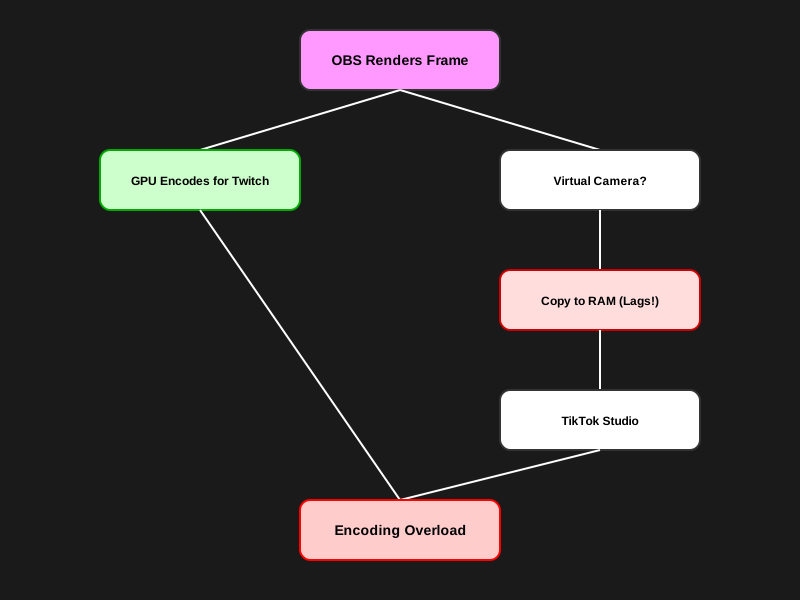
TikTok Live Encoding Overload Process Diagram: Revealing the performance bottleneck caused by memory copying from VRAM to System RAM.
Why This Matters
The diagram illustrates that the "Copy-to-System-RAM" step is a unique hurdle for TikTok streaming. Twitch streaming stays entirely "on-chip," while the TikTok bridge forces data to travel across your motherboard, creating lag.
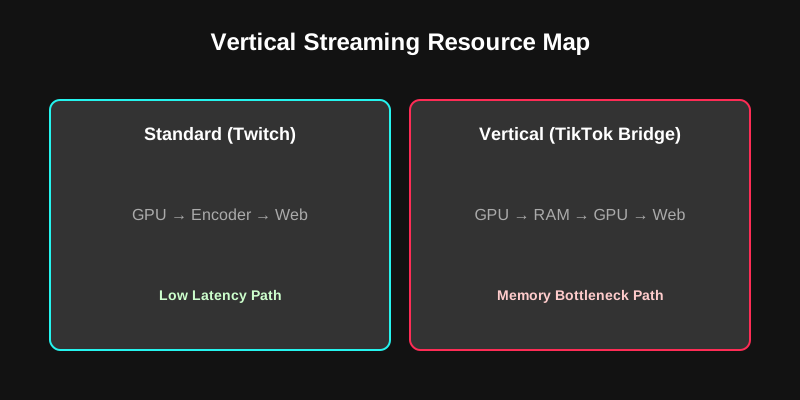
Vertical vs. Horizontal Streaming Resource Usage Comparison: Analyzing the pressure of dual rendering paths on the GPU.
How to Fix the "TikTok Only" Lag
Fix A: Lower the "Bridge" Resolution
Don't send a full 1080p feed through the Virtual Camera.
- In your Vertical Plugin or OBS settings, set the Virtual Camera Output to 720x1280.
- On a phone screen, 720p is nearly indistinguishable from 1080p, but it reduces the memory copy load by over 50%.
Fix B: Cap Your Game FPS
If your game is running uncapped (e.g., 200+ FPS), it is starving the GPU of the resources needed to copy those frames to the Virtual Camera.
- Cap your game at 60 FPS or 120 FPS. This leaves enough "headroom" for the Windows Desktop Window Manager (DWM) to handle the data transfer between OBS and TikTok.
Fix C: Use a Native Plugin (Aitum Vertical)
Instead of running two apps (OBS + TikTok Live Studio), use the Aitum Vertical plugin. If you have a TikTok Stream Key, you can stream directly from OBS. This eliminates the "Memory See-Saw" entirely because the data never leaves OBS.
Actionable Checklist
- Run OBS as Admin: This is mandatory for GPU resource priority.
- Disable Preview in TikTok Live Studio: If you must use both apps, hide the preview in the TikTok app to save rendering power.
- Match Refresh Rates: Ensure your OBS canvas, Virtual Camera, and TikTok Studio are all set to the same FPS (e.g., all 60 or all 30).
- Set TikTok to "Speed" Priority: In TikTok Live Studio encoder settings, choose "Speed" or "Performance" over "Quality."
FAQ
Q: I have a 4090 and I still get encoding overload. Why? A: Even a 4090 is limited by how fast it can copy data to System RAM via the Virtual Camera. If your game is using high VRAM, the bus is already busy. Lowering the Virtual Camera resolution usually fixes this.
Q: Does using a Stream Key fix the overload? A: Yes. Streaming directly from OBS (via Aitum or the built-in custom RTMP) uses the encoder once for both platforms if you use the same settings, or twice on the same chip, avoiding the Virtual Camera copy process.
Q: Should I use x264 (CPU) for TikTok? A: If you have a high-core count CPU (Ryzen 9 or i9), yes. Offloading the TikTok encode to the CPU frees up the GPU's NVENC chip for Twitch.
Conclusion
"Encoding Overload" on TikTok Live isn't a sign that your PC is weak; it's a sign that your data pipeline is clogged. By reducing the resolution of your Virtual Camera bridge and capping your game's frame rate, you can clear the bottleneck and provide a smooth experience for both your Twitch and TikTok audiences.
Stop fighting your hardware and start optimizing your path.