
- Published on
DStream Preview Looks Fine But Live Looks Different: The Transcoding Layer (2026)
- Authors

- Name
- Robin
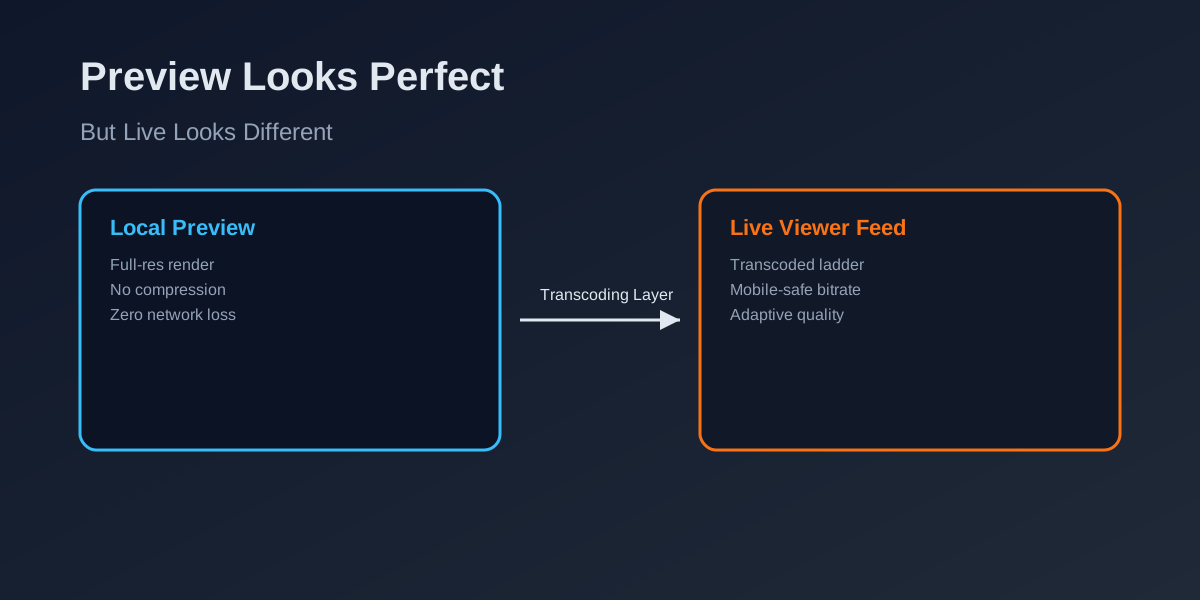
DStream and OBS previews show local render. TikTok viewers see the post-transcode feed, which can look softer or different after going live.
"DStream looks clean in preview, but my live on TikTok looks softer or different right after I go live."
Preview looks fine but live is different after going live, TikTok transcode layer, why quality changes on viewers.
The preview is local, but TikTok delivers a transcoded ladder. If you send settings outside TikTok’s comfort zone, the platform re-encodes and your live looks different.
The Reddit Pattern (r/TikTokLive)
The thread always reads the same:
“My DStream preview looks perfect. After I go live, the stream looks softer, darker, or slightly different. Is my encoder broken?”
It isn’t broken. You are just seeing two different feeds.
The Real Pipeline (Preview vs Live)
Your preview is a local render. Your viewers see a server-processed delivery stream.
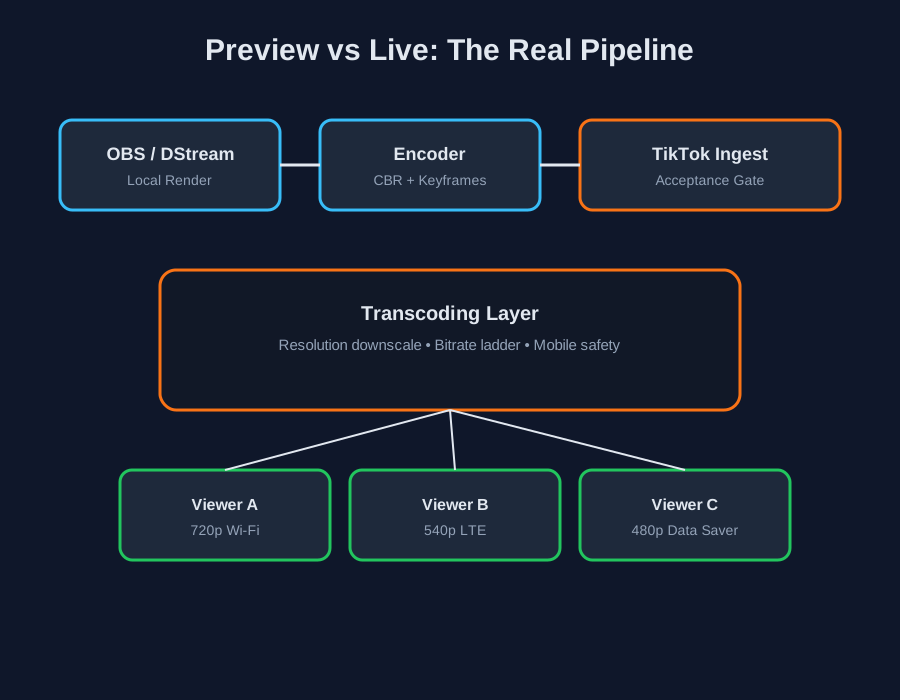
Preview is local. Live is re-encoded and delivered in multiple rungs based on viewer device and network.
What changes after you go live:
- TikTok accepts your upload, then builds a transcode ladder for mobile viewers.
- That ladder can downscale resolution and bitrate even if your preview is sharp.
- Different viewers can see different quality at the same time.
The Transcode Layer (Why It Looks Different)
TikTok doesn’t send every viewer your original stream. It re-encodes into multiple versions and chooses a rung per viewer.
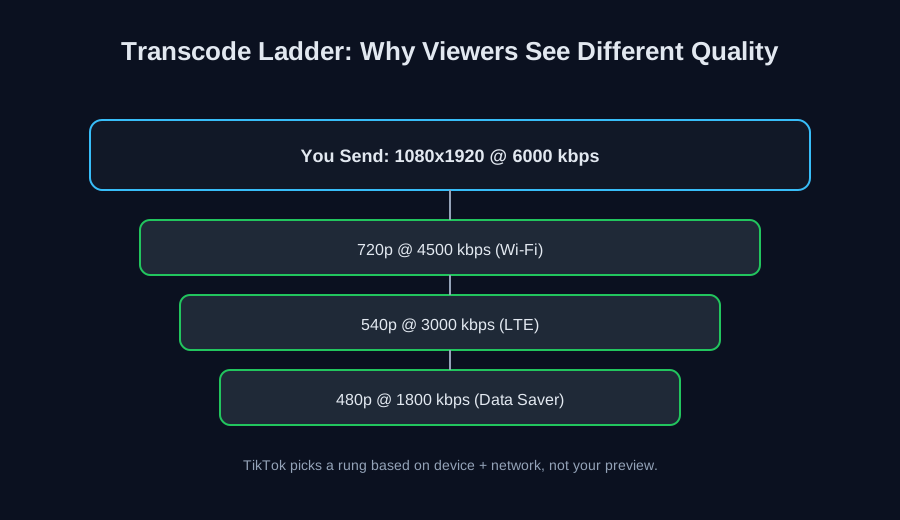
If your source is too heavy, TikTok compresses it into mobile-safe rungs. That’s why the live looks softer than the preview.
Why your preview misleads you
- Preview = local render (no network, no compression).
- Live = re-encoded delivery optimized for phone screens and unstable networks.
- If your source is outside the platform’s comfort zone, TikTok will crush it.
Fixes That Actually Work
1) Match the platform’s comfort zone
Start with a stable baseline that TikTok doesn’t need to “fix.”
- Resolution: 720x1280
- FPS: 30 or 60 only if stable
- Bitrate: 3500–5000 kbps (CBR)
- Keyframe interval: 2 seconds
2) Avoid double-encoding
If DStream is routing through another tool before TikTok, you might be encoding twice. That makes the stream look softer after the transcode layer.
- Prefer a direct stream key path when possible.
- Avoid rescaling in multiple places.
3) Test on real devices
Your PC preview is not the truth. The truth is the phone on cellular.
- Test on 4G/5G, not just home Wi-Fi.
- Ask one viewer on a different carrier to confirm quality.
Actionable Checklist
- Set 720x1280 output and CBR bitrate
- Keyframe interval = 2 seconds
- Avoid rescale in multiple apps
- Test on cellular and compare
- If live still looks different, lower bitrate by 500 kbps
FAQ
“Is DStream the problem?”
Usually no. DStream is just your local renderer. The difference appears after the ingest and transcode layer.
“Why do some viewers say it looks fine while others say it’s blurry?”
They are on different rungs of the transcode ladder based on device, network, and TikTok’s quality settings.
“Can I force TikTok to show 1080p?”
Not reliably. TikTok prioritizes stability for mobile viewers. If you need 1080p, you must have a stable upload and still accept that the platform may downscale.
Practical Conclusion
Your preview is not the live feed. TikTok re-encodes and delivers a ladder of quality levels, and your viewers are scattered across that ladder. Match your settings to what TikTok prefers, and the “preview vs live” gap shrinks fast.